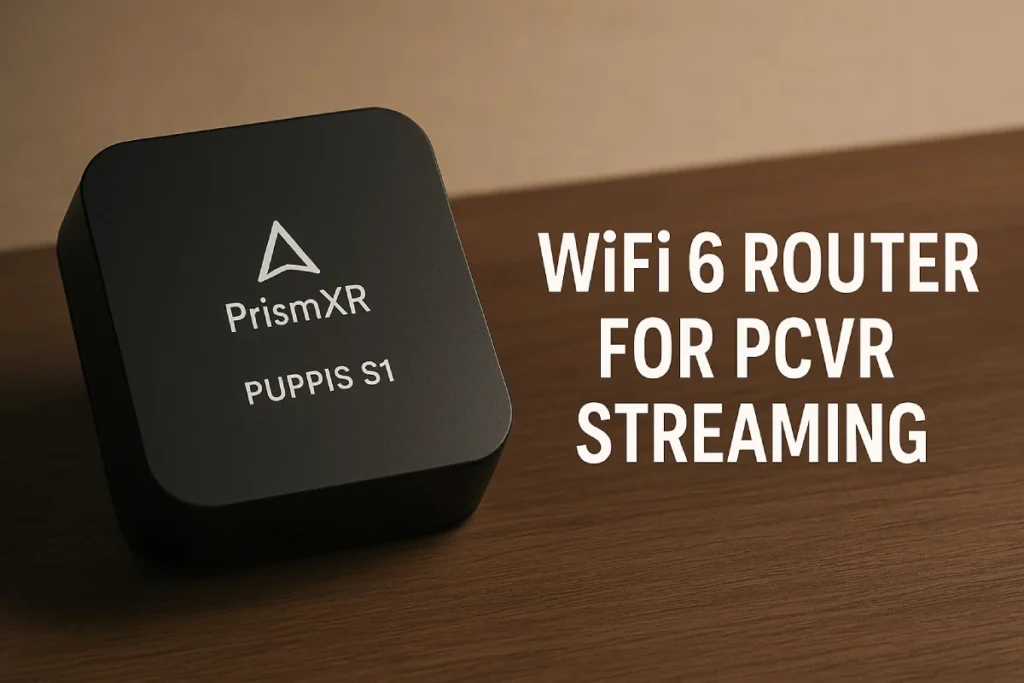
You shelled out for a Quest 3 because you heard it can deliver sharp, PC level VR without tethers. The next step is a clean wireless connection from your gaming PC to the headset. That is exactly where the PrismXR Puppis S1 comes in. It is a tiny WiFi 6 router made for PCVR streaming, often called a Puppis VR bridge, so your Quest 3 gets its own dedicated high-speed lane instead of getting bogged down in your regular home WiFi traffic.
In this guide, you will find out what Puppis S1 does, how to set it up step by step with a Quest 3, tips for tweaking your settings for smooth PCVR performance, and what to check if you are still running into lag or stutter.
What Is Puppis S1 and Why Use It for Quest 3 PCVR
Puppis S1 is a small WiFi 6 dedicated router built specifically for VR and PC streaming. It is powered by a high-speed 1.3 GHz dual-core processor and uses AC3200-class hardware to deliver up to 3000 Mbps total throughput: 600 Mbps on the 2.4 GHz band and 2402 Mbps on the 5 GHz band.
The main thing that sets Puppis S1 apart from a typical home router is how you connect it. It connects directly to your PC via USB and uses PrismXR software to create a dedicated wireless connection with your VR headset. For PC VR streaming, it offers a dedicated PrismPulse mode, along with WiFi Hotspot and WiFi Adapter modes for broader network compatibility.
In practice, that means your Quest 3 can talk almost directly to your PC through Puppis S1 instead of routing traffic through a busy household router that is loaded up with phones, TVs, and smart appliances. Speeds are very consistent around 2400 Mbps for many users, with very low latency, making it suitable for Virtual Desktop or Quest Link wireless.
What You Need Before You Begin
Before you install anything, make sure you have the following ready. You need a Windows 10 or Windows 11 gaming PC with a decent GPU and at least two free USB-A ports. You need a Meta Quest 3 headset with the latest firmware installed. You need the PrismXR Puppis S1 router with its USB cable and Y-type power adapter. On the PC, you need an internet connection. A wired Ethernet connection is best, but WiFi can work. This is the connection you want to keep for the PC itself.
You need a way to stream from the PC to the headset. Examples include Virtual Desktop or Meta Quest Link on your PC. You need the PrismXR mobile app installed on your phone for the initial setup of EaseLink and for updating the firmware. Once this groundwork is done, you can proceed with the actual Puppis S1 configuration.
Step 1: Physically Connecting Puppis S1 to Your PC
Before you can configure Puppis S1, you need to place it correctly and hook it up.
Position the Puppis S1
Put the unit in the room where you play, preferably at head height on a shelf or desk, with the front facing your play space.
Do not place it behind your monitor, behind metal objects, or directly behind dense walls. A clear line of sight to your play area gives the best results.
Connect the Y Cable
Use the included Y cable.
The blue USB-A plug should be connected to a USB 3.0 port on your PC.
The white USB-A plug can go into another free USB-A port on your PC, whether USB 2.0 or USB 3.0, depending on what you have available.
The USB-C end of the Y cable goes into the bottom of the Puppis S1, with the left and right markings facing the same direction, so the connector seats correctly.
Power On and Check the LEDs
Power on your PC. You should see the LEDs on the side of the Puppis S1 light up when it boots. At this point, it is waiting to pair with your phone or PC.
If your PC is connected to your main router via wired Ethernet, keep it that way. The best Quest 3 PCVR experience with Puppis S1 uses a wired PC connection and a wireless headset connection.
Step 2: Connect Puppis S1 to the PrismXR App
The next step is to bind Puppis S1 to the PrismXR app on your phone using Bluetooth.
Make sure your phone’s Bluetooth is turned on.
Download and open the PrismXR app. Create an account or continue without one, depending on your preference.
Puppis S1 goes into Bluetooth pairing mode when the status LED blinks white. The app should detect it and prompt you to add a new Puppis S1. Tap Add to associate it with your app.
After you have connected, tap the device icon in the app and check for any available firmware updates. It is strongly recommended that you update to the latest firmware because it usually includes performance and stability improvements for VR streaming and PC internet sharing.
The router will reboot after the firmware update. Give it a minute to come back online in the app before proceeding.
Step 3: Decide How Puppis S1 Connects to the Internet
You can stream PCVR from your Quest 3 without being online, but Puppis S1 still benefits from an internet connection if you want cloud features or store access.
In the PrismXR app, look for the Internet settings section. You will usually see three options.
Option 1: Join Puppis S1 to 2.4 GHz WiFi
You can connect Puppis S1 to your regular 2.4 GHz home WiFi network. The router will use that as its path out to the internet while still providing a dedicated WiFi 6 link for your Quest 3 in PrismPulse mode.
This is the quickest way to get Puppis VR running if your PC is already connected to your main router by Ethernet.
Option 2: PC Internet Sharing
If USB tethering does not work for you, you can use PC internet sharing instead.
On Windows, you can enable Internet Connection Sharing so that Puppis S1 uses your PC’s existing internet connection. PrismXR includes a PC Internet Sharing Guide in the app, and several community guides show how to turn this on in Windows so you can select Puppis S1 as the shared device.
If you want all traffic to rely on a single reliable wired connection at the PC and let Puppis S1 sit behind your main network as a dedicated WiFi bridge, this option is recommended.
Option 3: Stream Only Without Internet
If you do not have an internet connection at all, you can still use Puppis S1.
You can disconnect Puppis S1 from the internet and use PrismPulse to stream local PCVR content. The main drawback is that cloud syncing and online game libraries will not work while the router has no internet connection available.
Step 4: Turn On PrismPulse for PCVR
Puppis VR is built around PrismPulse mode. This is what creates the dedicated wireless tunnel between your PC and the headset.
Make sure that the mode in the PrismXR app is set to PrismPulse or Mode 1. Many product shots and manuals call this the PC VR streaming mode.
Power up your Quest 3 and open the WiFi settings. You should see a network name that clearly refers to PrismPulse or Puppis S1. Select it and connect.
On your PC, start your preferred streaming solution. Virtual Desktop works well for many people, and Puppis S1 is also compatible with the official Quest Link and SteamVR-based solutions.
In your streaming app, select your Quest 3 and start PCVR. At this point, you should be playing over the dedicated Puppis S1 router instead of your general home WiFi.
Optimizing Puppis VR for Smooth Quest 3 Streaming
Once you have the basic connection working, a few tweaks can improve latency and reduce visual stutter.
Optimize Your PC
Close large background apps that use a lot of resources, such as browsers with many tabs, game launchers, or streams. A VR session already puts a heavy load on your CPU and GPU, and Puppis S1 can only work with the frames your PC actually produces.
Whenever possible, keep your PC on wired Ethernet. Direct cabling to your primary router or modem reduces jitter compared to WiFi.
Turn off VPN clients and any firewalls that do deep traffic inspection. Some Puppis S1 users have fixed latency issues simply by disabling VPN software during VR sessions.
Optimize Your Wireless Link
Use Puppis S1 for VR only. The device is designed to focus on a single headset, and community feedback suggests it is very stable when used only for a Quest 3.
Place the unit so it has a clear line of sight to your play area. Avoid standing directly between the router and the headset, and avoid having mirrors, aquariums, or thick concrete walls along that line.
In crowded environments, some experimental or DFS channels may be less congested and provide smoother VR streaming, especially in 5 GHz-heavy apartment buildings.
Optimize Your Streaming App
In Virtual Desktop or Quest Link, start with conservative settings and move up.
Start with a lower resolution and bitrate, then gradually increase them until you first notice stutter, then back off slightly.
You can usually raise the refresh rate to 72 or 80 Hz while testing.
Avoid maxing out the video bitrate right away. Step up resolution and bitrate in small increments until you find your personal balance of clarity and smoothness.
Many reviews report that once everything is tuned correctly, Puppis S1 can handle very high bitrates and, in some cases, matches or beats more expensive routers for PCVR use.
The Difference Between Hotspot Mode and Adapter Mode
PrismPulse is mode 1, the dedicated PCVR streaming mode. Puppis S1 also includes two other modes that are useful around a Quest 3 setup.
WiFi Hotspot mode turns Puppis S1 into a regular WiFi hotspot so your phone, tablet, or other devices can charge over USB and access the internet through your PC. If your main router is in another room or at the far end of the house, this gives you decent WiFi near your play space.
WiFi Adapter mode does the reverse. Puppis S1 becomes a wireless bridge, similar to the adapters people use to connect devices like Steam Link boxes or streaming sticks to WiFi. In this mode, Puppis S1 can serve as a WiFi adapter for an entire PC that does not have built-in WiFi, using your router and internet connection.
For pure Quest 3 PCVR streaming, PrismPulse should usually remain your default mode. Switch to the other modes only when you have a specific reason.
Puppis S1 and Quest 3 Problem Fixes
Not every problem reported with Puppis S1 and Quest 3 is serious. Even with a dedicated Puppis VR router, issues can show up. These are some common fixes.
If you do not see the Puppis WiFi network on your Quest 3, make sure PrismPulse mode is enabled, and the router has fully booted. Power off the device and the PC, then boot both again and verify in the PrismXR app that the router shows as online.
If the Internet LED stays red, check that either 2.4 GHz WiFi or PC Internet Sharing has been configured in the app. The PC Internet Sharing Guide and community tutorials walk you through the specific Windows steps to pick Puppis S1 as the shared adapter on the Sharing tab.
If you see latency spikes, start with the basics. Close VPN clients, stop large downloads, and test with a smaller environment in your VR game. Some users also optimize Internet Connection Sharing so that it persists across Windows restarts, which helps performance stay stable when they log out and back in.
As a last resort, and in what is becoming a fairly standard troubleshooting step, check the PrismXR app for new firmware, visit the Puppis S1 FAQ page, power cycle your router, and work through the setup again from the beginning.
Is Puppis S1 Better Than a Typical WiFi 6 Router for Quest 3
A decent WiFi 6 router can work for Quest 3 PCVR, especially on the 5 GHz band. The advantage of Puppis S1 is that it is designed for this one task.
It plugs directly into your PC, runs VR-tuned firmware, and offers operating modes built around streaming between the PC and the headset instead of managing dozens of general-purpose devices.
For many people, that means you do not have to touch your existing home network at all. You place a dedicated Puppis VR bridge next to your gaming rig, connect it over USB, and let it become your private highway for Quest 3 PCVR.
Final Thoughts
If you want to smooth out Quest 3 PCVR without overhauling your home network or buying an enterprise router, Puppis S1 is a smart middle ground. It is a dedicated WiFi 6 bridge built for VR, with PrismPulse mode doing the heavy lifting to keep the signal between your PC and headset clean.
Follow the steps in this guide, keep your PC connected to a wired network, give the router a clear line of sight to your play space, and treat Puppis S1 as a VR-only device. Once you have the settings dialed in, Puppis S1 can feel very close to a wired connection while giving you the freedom to move as you like.
FAQs
Can I use Puppis S1 with Quest 3 offline?
Yes. You can keep Puppis S1 powered and use PrismPulse mode for local PCVR streaming only. Your games will continue to run as long as they are available on your PC, but any cloud sync or store access will not work until the router has an internet connection again.
Is Puppis S1 only compatible with Quest 3?
No. Puppis S1 is compatible with most standalone headsets, including Quest 3, Quest 2, Quest Pro, Pico 4, and HTC or Valve devices that use the official PC client software or third-party tools such as Virtual Desktop or SteamVR streaming over Wi-Fi.
Do I still need a Link cable if I have Puppis VR?
You do not need a Link cable once your Puppis S1 PrismPulse setup is working properly. Many users buy this router specifically to replace a cable with a fast, stable WiFi 6 bridge. You might still want a cable as a backup for troubleshooting or if you absolutely need the most stable connection for sim racing or competitive games.
What kind of PC do I need for Puppis S1 and Quest 3 PCVR?
Puppis S1 solves the wireless side of the equation, but it cannot make a weak PC stronger. Aim for a modern quad-core or better CPU, a gaming-class GPU that meets Meta’s PCVR specs, at least 16 GB of memory, and Windows 10 or 11. The more performance headroom your PC has, the easier it is to push high bitrates into the router without dropping frames.
If I cannot afford Puppis S1 later, is Puppis S1 Lite good enough?
The value-oriented AX1500-based Puppis S1 Lite is still aimed at PCVR streaming, while the full Puppis S1 offers AX3000 speeds and more bandwidth headroom for higher resolution and potentially higher bitrates. If you are very sensitive to compression artifacts and plan to push your Quest 3 hard, the full Puppis S1 gives you more headroom for smooth, high-quality PCVR.